
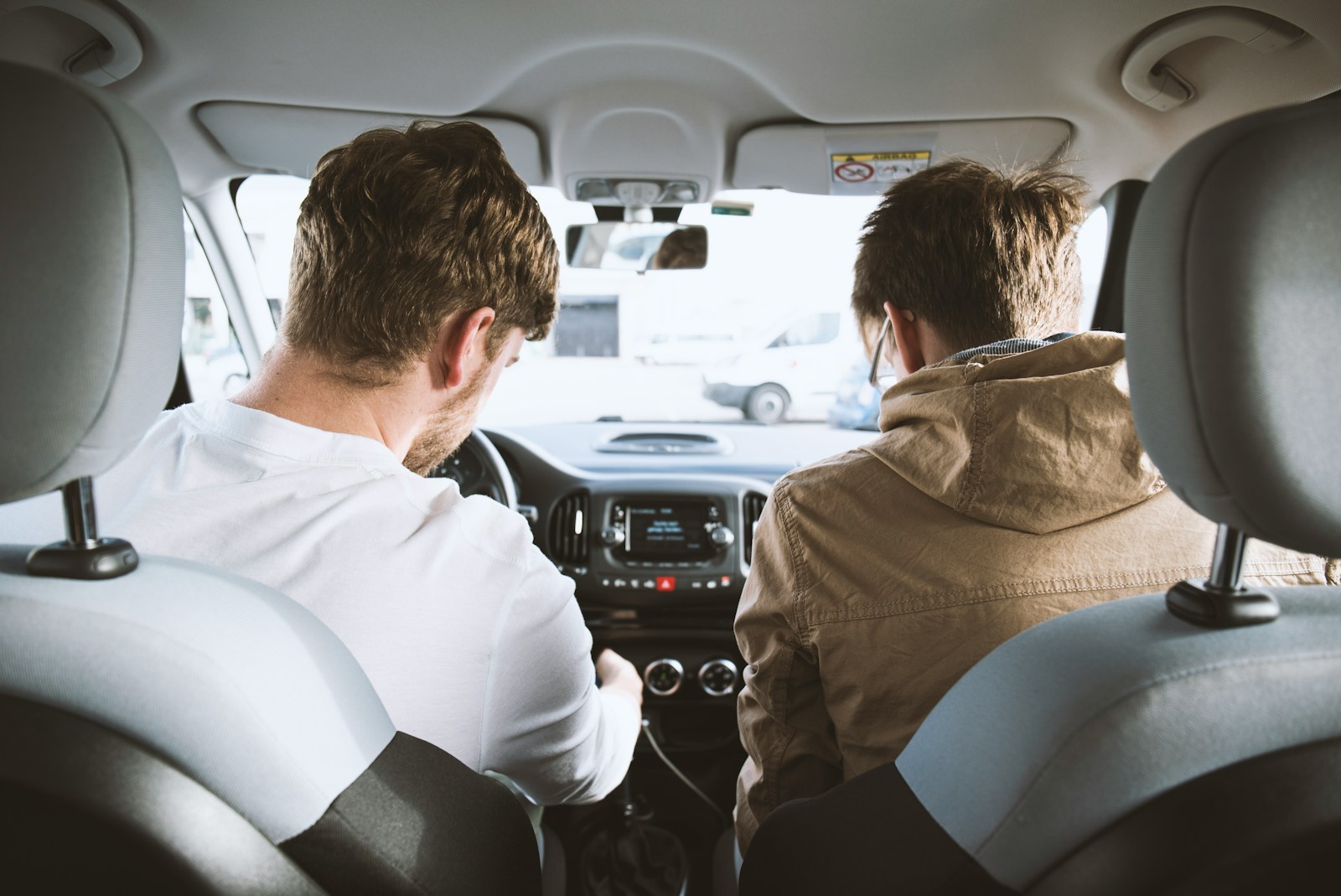

A driver recently shared his frustration with an all-too-common technology headache: his car’s Bluetooth system keeps prioritizing his passenger’s phone over his own, causing his music to cut out unexpectedly while he’s behind the wheel. The issue stems from the car’s Bluetooth memory storing multiple devices and automatically connecting to whichever phone it detects first, rather than giving priority to the driver’s device. What should be a convenient hands-free feature has turned into a source of aggravation during his daily commutes.
The problem highlights a widespread challenge that many drivers face with modern vehicle technology. Common Bluetooth pairing issues can range from pairing memory conflicts to incorrect profile settings, leaving drivers scrambling to regain control of their audio systems mid-trip.
This driver’s experience isn’t unique, as vehicles with Bluetooth capability often struggle to distinguish between multiple paired phones in the same car. The system’s inability to recognize which device belongs to the actual driver creates an awkward shuffle for control every time a passenger enters the vehicle with their phone’s Bluetooth enabled.

Common Bluetooth Connection Problems in Vehicles
Bluetooth systems in modern vehicles frequently struggle with device prioritization and automatic pairing features that can hijack control from the primary driver’s phone. These technical quirks create scenarios where passengers inadvertently take over the audio system.
Why Driver Phones Lose Priority To Passenger Devices
Vehicle Bluetooth systems don’t always recognize which phone belongs to the driver versus passengers. Most car infotainment systems connect to the first available paired device within range, regardless of who owns it.
When multiple phones have been previously paired with the car, the system searches through its memory list. Whichever device responds first to the connection request typically wins. This explains why a passenger’s phone might connect before the driver even starts the ignition.
Some vehicles attempt to establish priority through “last connected” logic, automatically linking to whichever phone was used most recently. This becomes problematic when a passenger borrowed the car or when the driver gives someone else temporary access to the audio system. Software glitches and outdated firmware can further complicate priority settings, making the connection feel random and unpredictable.
How Automatic Pairing Affects Music Control
Automatic pairing features activate the moment a previously connected phone enters the vehicle’s Bluetooth range. The system initiates the connection without requiring any manual input from the phone’s owner.
This creates situations where a passenger’s phone connects and immediately begins playing whatever audio was last active on their device. Music control then defaults to the connected phone, preventing the driver from accessing their own playlists or podcasts through the car’s interface.
The automatic connection doesn’t distinguish between driver intent and passive proximity. A passenger simply sitting in the car triggers the same pairing sequence as the driver would. Once connected, disconnecting the passenger’s phone and switching to the driver’s device requires manual intervention through multiple Bluetooth settings menus.
Typical Bluetooth Settings Leading to Connection Issues
Many vehicles ship with “auto-connect” enabled by default in their Bluetooth configuration menus. This setting allows any previously paired device to establish a connection without confirmation prompts.
The “device priority list” within most car systems shows all paired phones but rarely offers clear options for reordering them. Drivers often don’t realize they can manually set which device should connect first. Some manufacturers hide these priority controls several menu layers deep within the infotainment system.
Another problematic setting involves “simultaneous connections,” where the car attempts to maintain links with multiple phones at once. This feature aims to support hands-free calling on one device while streaming music from another, but it frequently results in connection conflicts and signal interference. The system struggles to determine which phone should handle audio playback versus call functions.
Easy Fixes and Preventative Tips for Driver Bluetooth Control
Drivers experiencing unwanted Bluetooth connections from passenger devices have several technical solutions available, from clearing existing pairings to adjusting priority settings in their vehicle’s infotainment system.
Resetting Pairing Preferences in Your Car
The most straightforward solution involves removing all paired devices from the car’s Bluetooth system and starting fresh. Most vehicles allow drivers to access their Bluetooth settings through the infotainment screen, where they can view a list of previously connected phones.
Deleting the passenger’s phone from this list prevents automatic reconnection. The driver should navigate to the Bluetooth menu, select “Forget Device” or “Delete” next to the unwanted phone, and confirm the action.
After clearing old connections, the driver can re-pair only his own device. Some systems require toggling Bluetooth off and on to complete the reset process. This ensures the car recognizes the driver’s phone as the primary device going forward.
Adjusting Settings to Prioritize Driver’s Phone
Many modern vehicles include priority settings that determine which phone connects first when multiple devices are in range. Drivers can typically access these options through the car’s settings menu under Bluetooth or Device Management.
The priority list allows users to arrange phones in order of preference. Placing the driver’s phone at the top ensures it connects automatically when he enters the vehicle, even if the passenger’s phone is already inside.
Some manufacturers call this feature “connection priority” or “device order.” The driver might need to consult his vehicle’s manual to locate the specific menu, as placement varies between brands.
Best Practices for Managing Bluetooth Connections With Passengers
Passengers can help prevent connection conflicts by disabling Bluetooth on their phones before entering the vehicle. This simple step stops their devices from attempting to pair automatically.
Drivers who frequently travel with the same passengers should establish a routine where only the driver’s phone has Bluetooth enabled during trips. Alternatively, passengers can remove the vehicle from their phone’s list of saved Bluetooth devices.
For cars without priority settings, the driver may need to manually disconnect the passenger’s phone each time through the infotainment screen. Some vehicles also allow users to check Device Manager for Bluetooth device recognition to identify which phones are attempting to connect.
More from Steel Horse Rides: